
Resources / Video library
A little guidance.
A smoother payday.
Short, practical walkthroughs for your payroll account—from signing in to submitting payroll and finding reports.
New here? Start with the essentials.
Quick answers
Four everyday tasks, step by step.
Start with the task you need. Portal screens and available options can vary by employer.
For employeesAccess Employee Self-Service
- Open employee sign-in and choose Employee Self-Service (ESS). Use MyGo only if your employer directs you there.
- Use the account details or invitation your employer provided. Complete any registration or verification prompts shown.
- After signing in, check that you are viewing the correct employer, then open the pay statement or document you need.
Missing an invitation? Ask your employer to confirm your email address and online access.
Watch the ESS overviewFor employeesFind a W-2 or pay stub
- Sign in through your employee portal.
- Look for the pay statement or tax-document area. Select the correct pay date or tax year, then open or download the available document.
- If a form is missing, ask your employer whether it has been released and confirm which portal holds that year’s records.
A current-year W-2 is available after year-end processing. Report incorrect information to your employer so it can be reviewed.
Watch the employee portal tourFor employersReview payroll reports
- Open employer sign-in and access Employer on the Go.
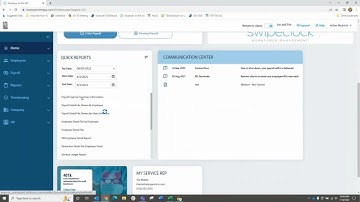
- Open the reports area and choose the payroll, quarter or year you need. Use Quick Reports or Report Wizard where available.
- Before approving payroll, review the preview for pay dates, employees, hours, pay amounts, deductions and funding totals. Send corrections to MVP before approval.
After processing, use the final reports for your records and accountant. Ask MVP if a report or permission is missing.
Watch quarterly and annual reportsFor employees and employersRecover account access
- Start from Client sign in and choose the correct portal.
- Use the account-recovery option shown on that sign-in screen. Follow its prompts and check the email account associated with your payroll profile.
- If you are locked out or cannot complete verification, employees should contact their employer; payroll administrators can ask MVP for help.
Tell us which portal and error you see. Never include your password or verification code. Use a secure upload link if a document is needed.
Learn at your pace
Find your walkthrough
27 tutorials
Choose a video to watch. Most take just a few minutes.
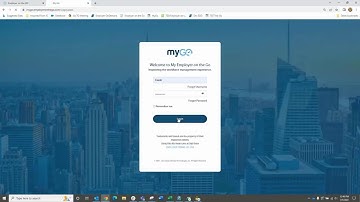
My Employer on the GO (MyGo)
A tour of MyGo, for employees whose employer uses this portal.
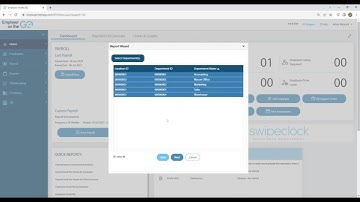
Generate Reports Using Report Wizard
Follow a short walkthrough of generating reports with Report Wizard.
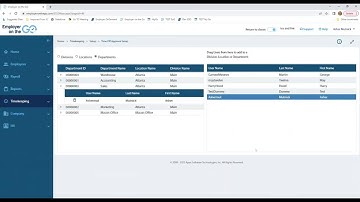
Set Up Email Reminders for Time Off Approvals
Set email reminders for time off approvals.
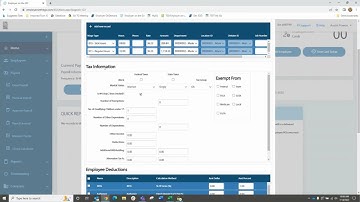
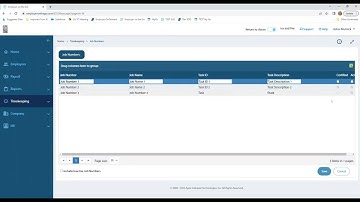
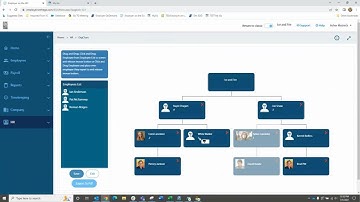
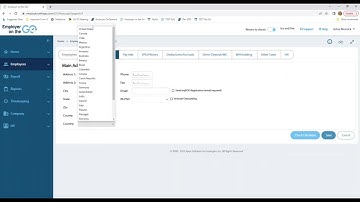
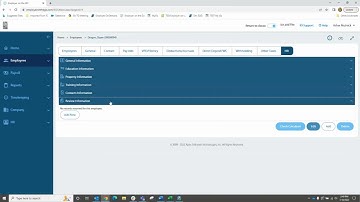
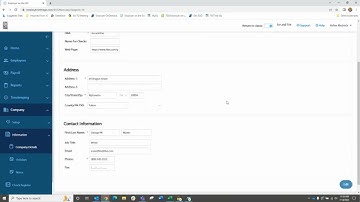
Employees & Contractors Contact Tab
Find your way around the employee and contractor Contact tab.
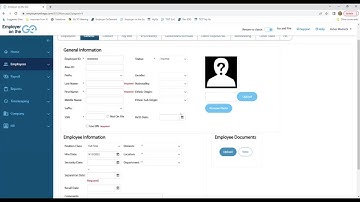
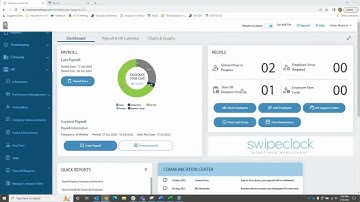
How to Approve or Deny Time Off Requests
Review and approve or deny time off requests.
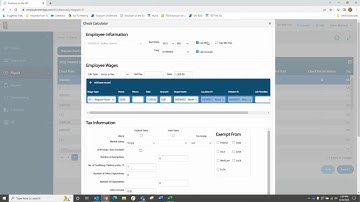
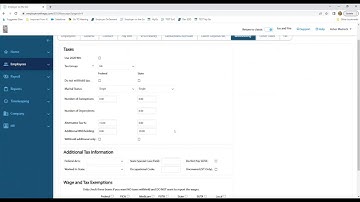
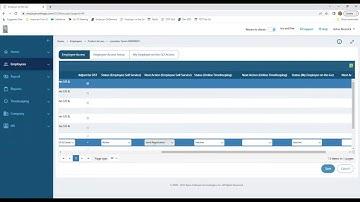
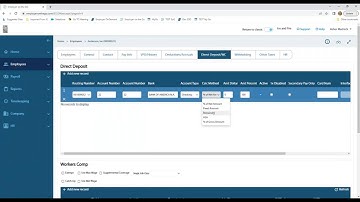
Adjust Employee Tax Withholding
See where to update an employee’s tax withholding settings.
No matching tutorials
Try a shorter search or choose another topic.
Screens and available features may vary by account. If your screen looks different, our team can help. Videos load from YouTube only when you choose to watch.
A hand when you need it
Still need help?
We’re here to make payroll easier. Let us know where you’re getting stuck.
Ask us for a walkthroughLooking for pay stubs or W-2s?
Most MVP clients use Employee Self-Service (ESS). Choose employee sign-in for ESS or MyGo, depending on your employer. Ask your employer for help with a missing invitation.
Ready to open your account?
Go to employer sign-in to access Employer on the Go with the credentials provided by MVP.
Need to share a payroll document?
Send payroll documents securely by requesting a secure upload link. Keep employee records and bank details out of the general contact form.
Not sure when hours are due?
Use the submission cutoff calculator to check your deadline and save a calendar reminder.